Knowledge base › Getting started
Getting started
Catalyn reads your products, checks each one against your standards, and only changes your store when you approve an update. This guide takes you from install to your first approved update. It takes about 10 minutes, and you need a Shopify store and permission to install apps.
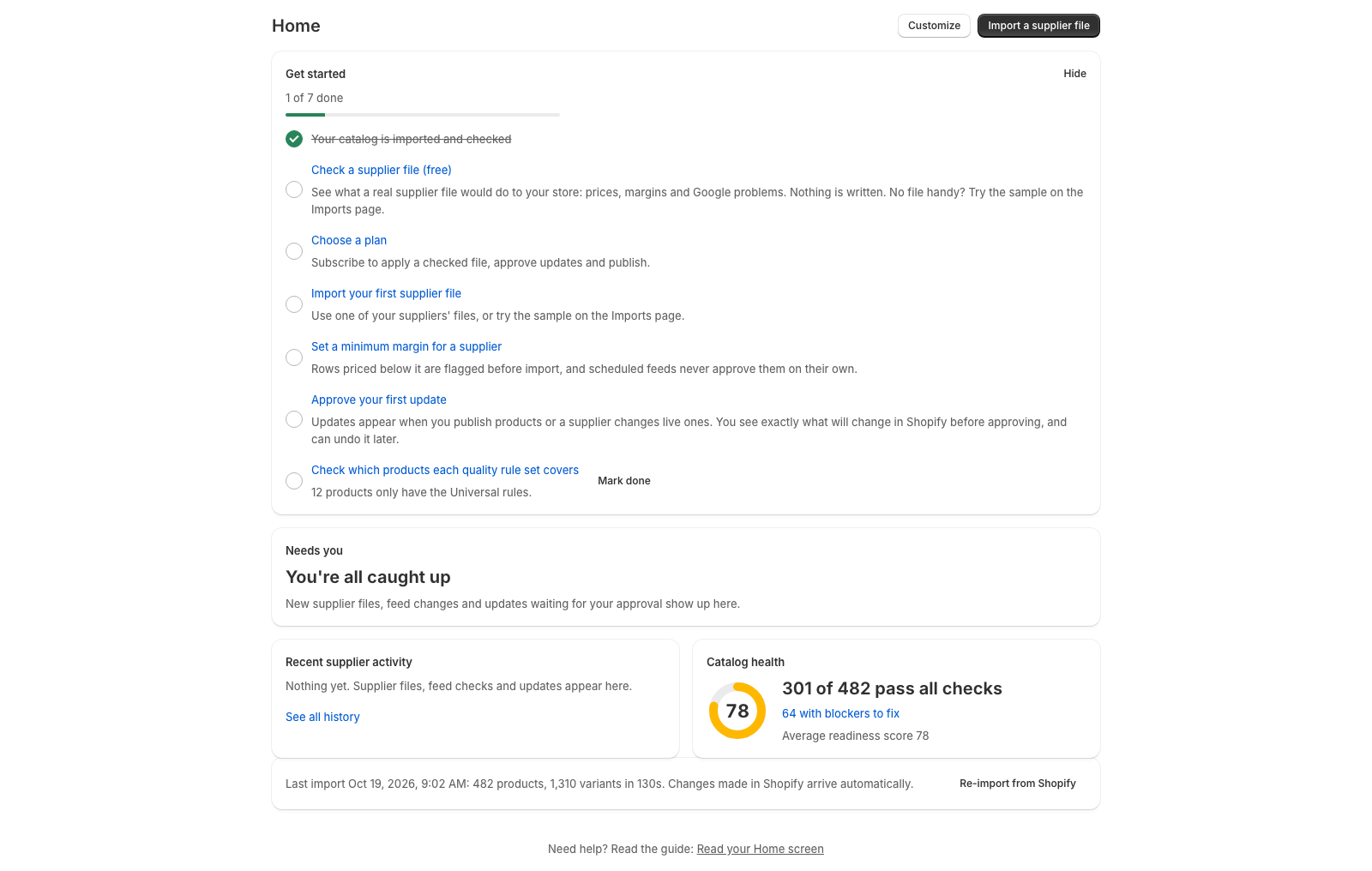
The Get started checklist on Home shows the same steps and ticks them off as you go.
1. Install Catalyn
- Find Catalyn in the Shopify App Store and choose Install.
- Review the permissions and approve them. Catalyn asks for access to your products and to publishing them to your sales channels. It never asks for customer or order data. A few features, such as translations, markets and renaming image files, ask for extra permission the first time you use them.
- Catalyn opens inside your Shopify admin. You will find it under Apps afterwards.
2. Let your catalog import
As soon as Catalyn opens, it imports your catalog from Shopify and checks every product against your quality rules. Most catalogs take a few minutes. Nothing in your store changes: this only reads your products. Catalyn keeps up to date with edits you make in Shopify automatically.
3. Read your Home screen
When the import finishes, Home shows what needs you, how many of your products pass every check, and your readiness score. Read your Home screen explains each card and how to choose your own.
4. Check a supplier file for free
Before you pay for anything, check one of your supplier's files. Catalyn shows what applying it would do: which prices fall below your margin, which products Google would block, and which rows need a decision. Nothing is written to your store. No file handy? Choose Try a sample supplier file on the Imports page.
5. Choose a plan
The free plan lets you see your scores and check supplier files. To apply a file, edit products and publish updates, you need a plan.
- Go to Settings, Plan.
- Pick the plan that fits your number of products. Both include a 7-day free trial. See Plans and billing.
- Approve the charge in Shopify. Billing runs through your Shopify invoice.
You can change or cancel your plan at any time on the same page. Cancelling returns you to the free plan, and nothing is deleted.
6. Import your first supplier file
Import your first supplier file takes you through uploading it, confirming the columns, previewing the changes and importing. New products start in Draft and nothing is published.
7. Set a minimum margin
Set a minimum margin for a supplier. From then on, any price in a file that would sell below it is flagged before import, and scheduled feeds never approve those changes on their own.
8. Approve your first update
When a supplier changes a live product, or you publish a product, the change waits in Approvals. Approve and undo an update shows how to review it, approve it and reverse it later.
9. Check your quality rules
Catalyn sets up rules from your own product types: universal checks for every product, plus starter rule sets for categories such as apparel, footwear, home, beauty, electronics and food. Set your quality rules shows how to see which products each rule set covers and how to change a rule.
Common questions
- Will Catalyn change my products straight away? No. Every change to a live product is an update you preview and approve first, and you can undo it afterwards.
- What if someone edits a product directly in Shopify? Catalyn notices and flags it as "Changed directly in Shopify", so nothing is overwritten without you knowing.
- Can my team use it? Yes. Anyone with access to the app in Shopify can use Catalyn. The store owner can limit who can approve updates under Settings, Team and email.
Related
Find and fix products that need attention · Uninstalling and your data
Still stuck, or something here is out of date? Email hello@paxworks.io.